
Sales & eCommerce

POS Order History, Reorder & Receipt Barcode

Reorder any past POS order in one click, limit how far back the Orders screen loads (today, current session, last 3 or 5 sessions), print the order reference as a barcode on receipts, and see customer balances in one report. Available for Odoo 14, 15, 16, 17, 18 and 19. On Odoo 14 (no paid-orders screen) Reorder is a button that lists recent paid orders.

$12 USD
Choose your Odoo version
Ask a question
Built by an Odoo partner Initial setup support Download link by email
POS Order History, Reorder & Receipt Barcode
What's included

Key features

1

One-click reorder

Repeat a customer's previous order instantly.

2

History limit

Load all orders, today only, the current session or the last 3 / 5 sessions.

3

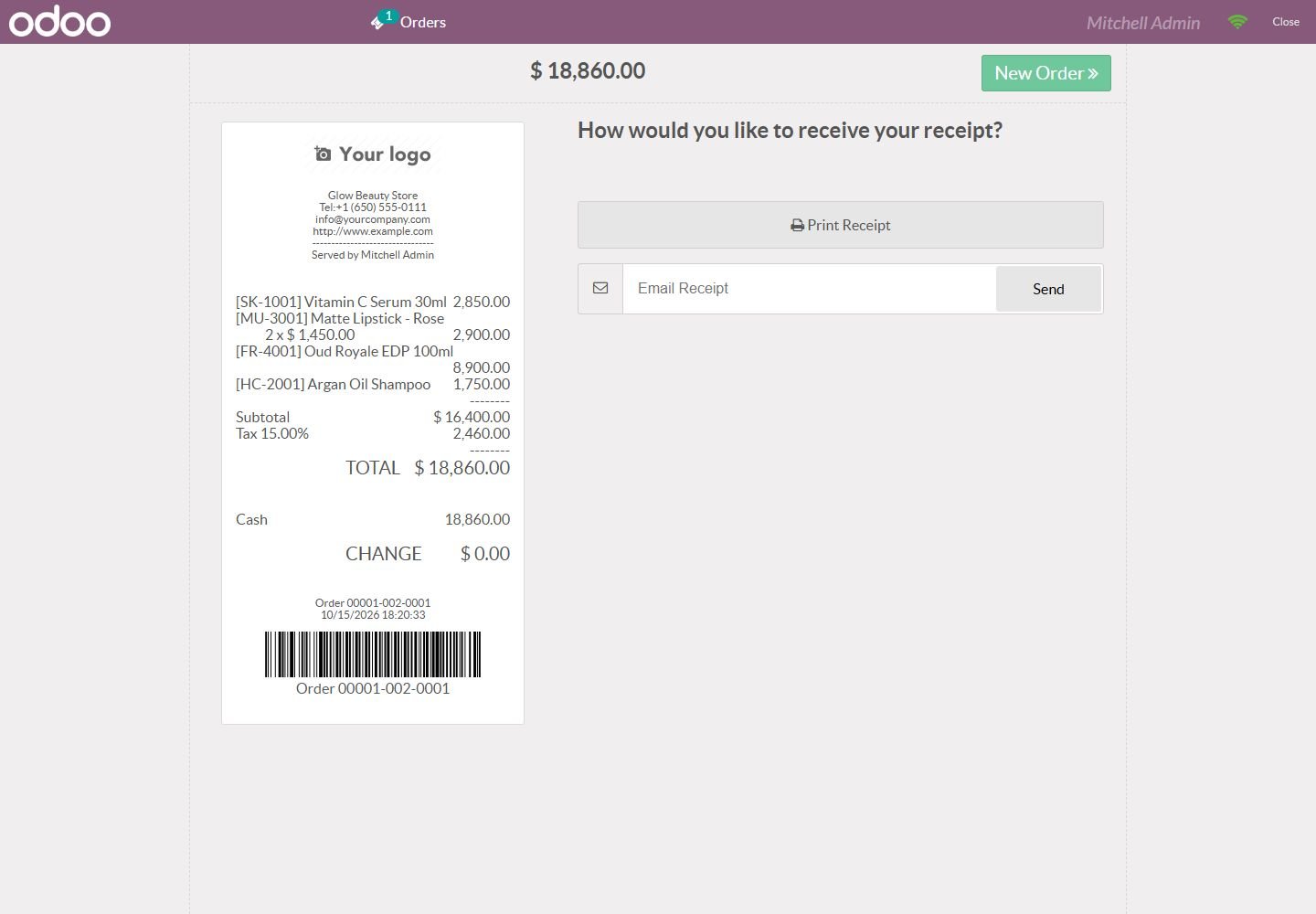
Receipt barcode

Order reference printed as a scannable barcode.

4

Customer balances

One list of customers with money due.

Inside the module

Screenshots

Real screens from POS Order History, Reorder & Receipt Barcode — click any image to see it full size.

Step 1

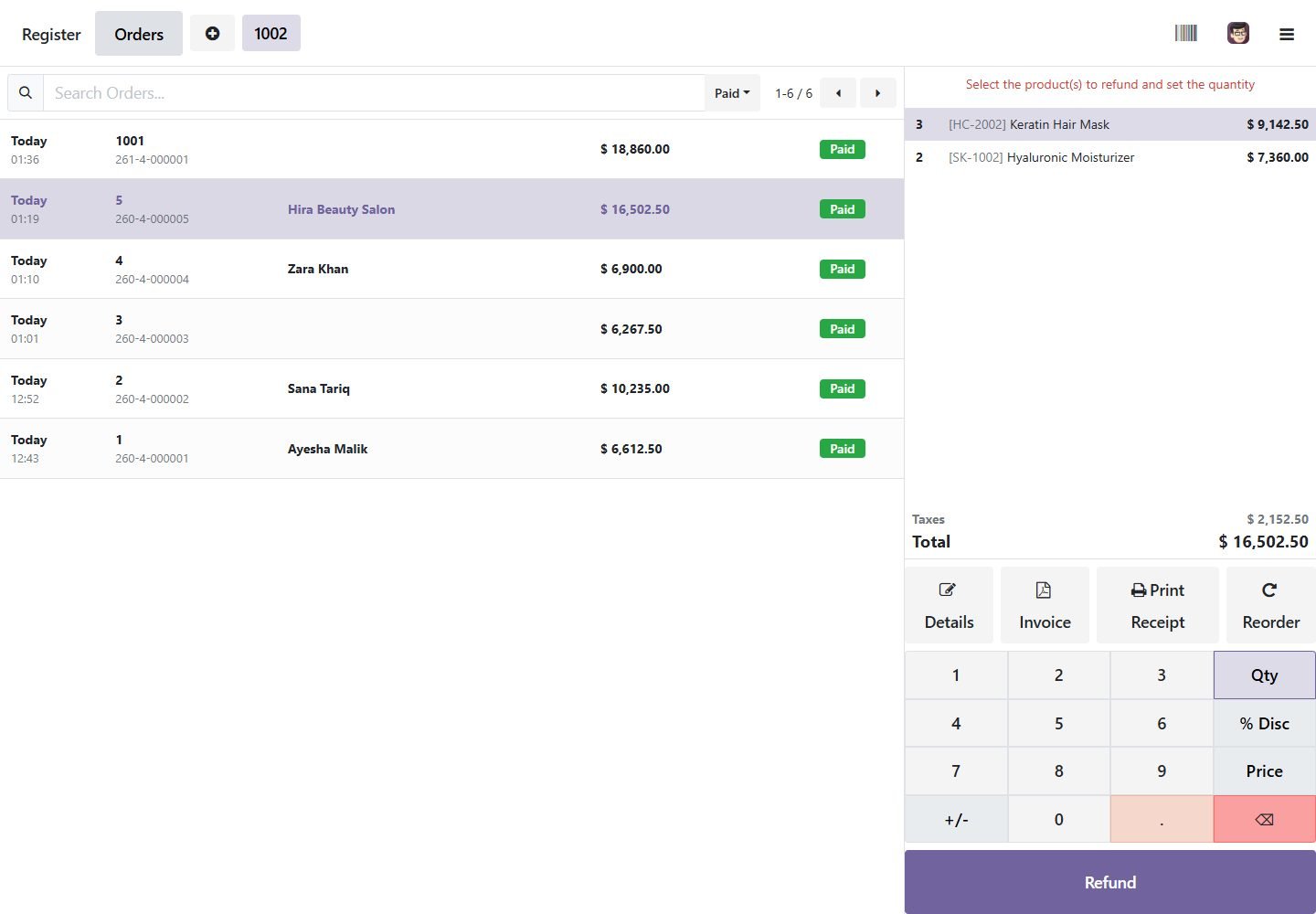
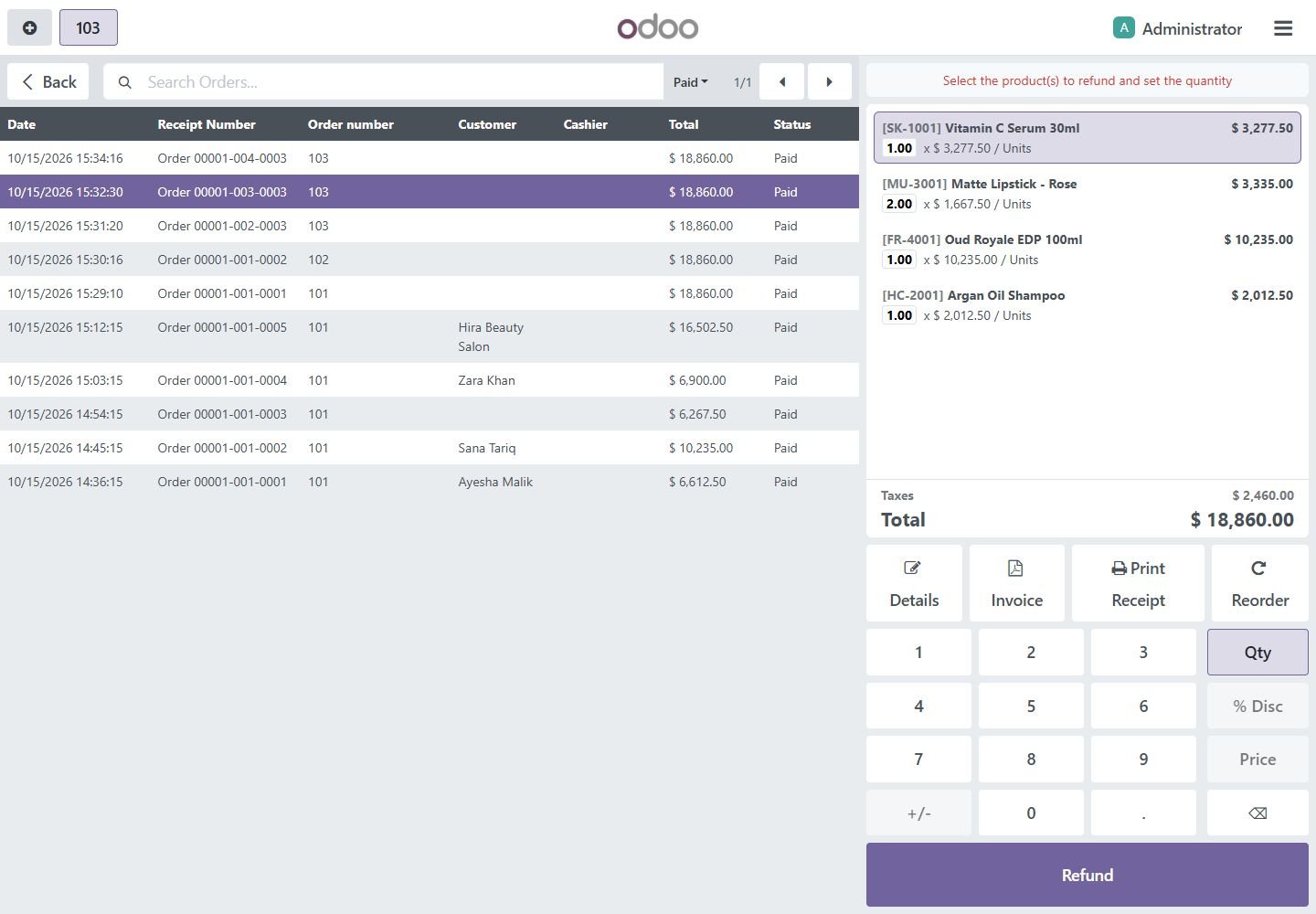
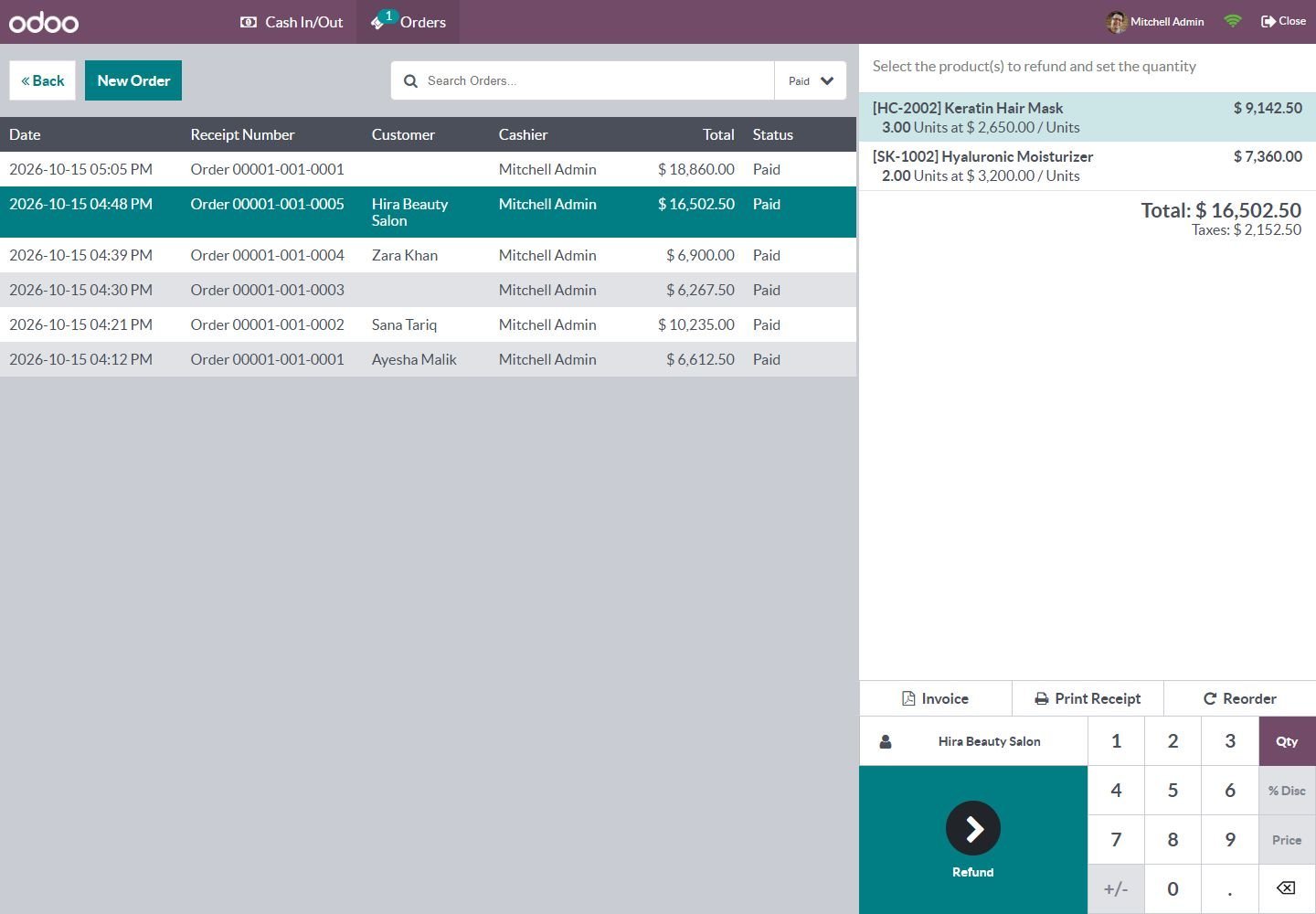
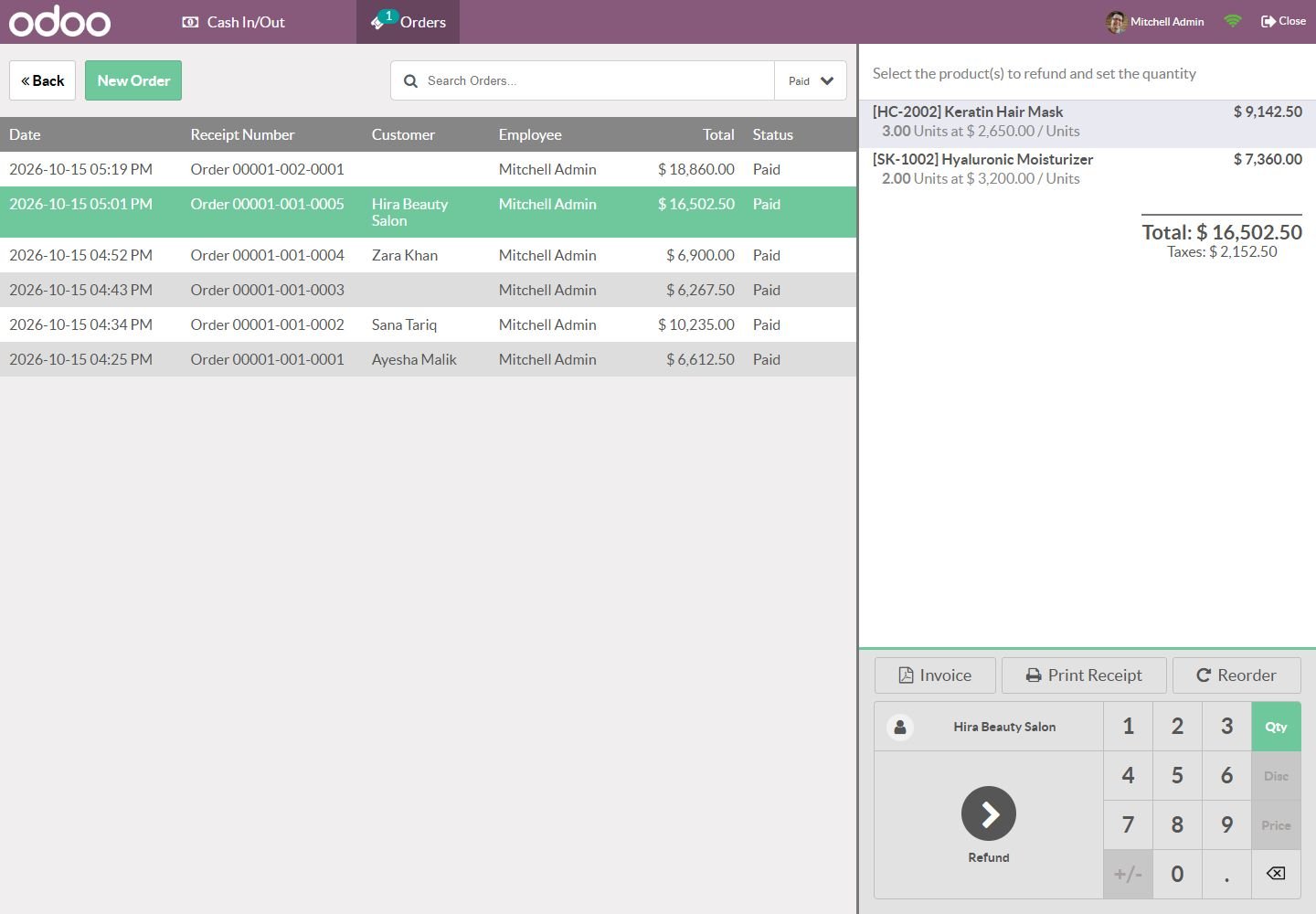
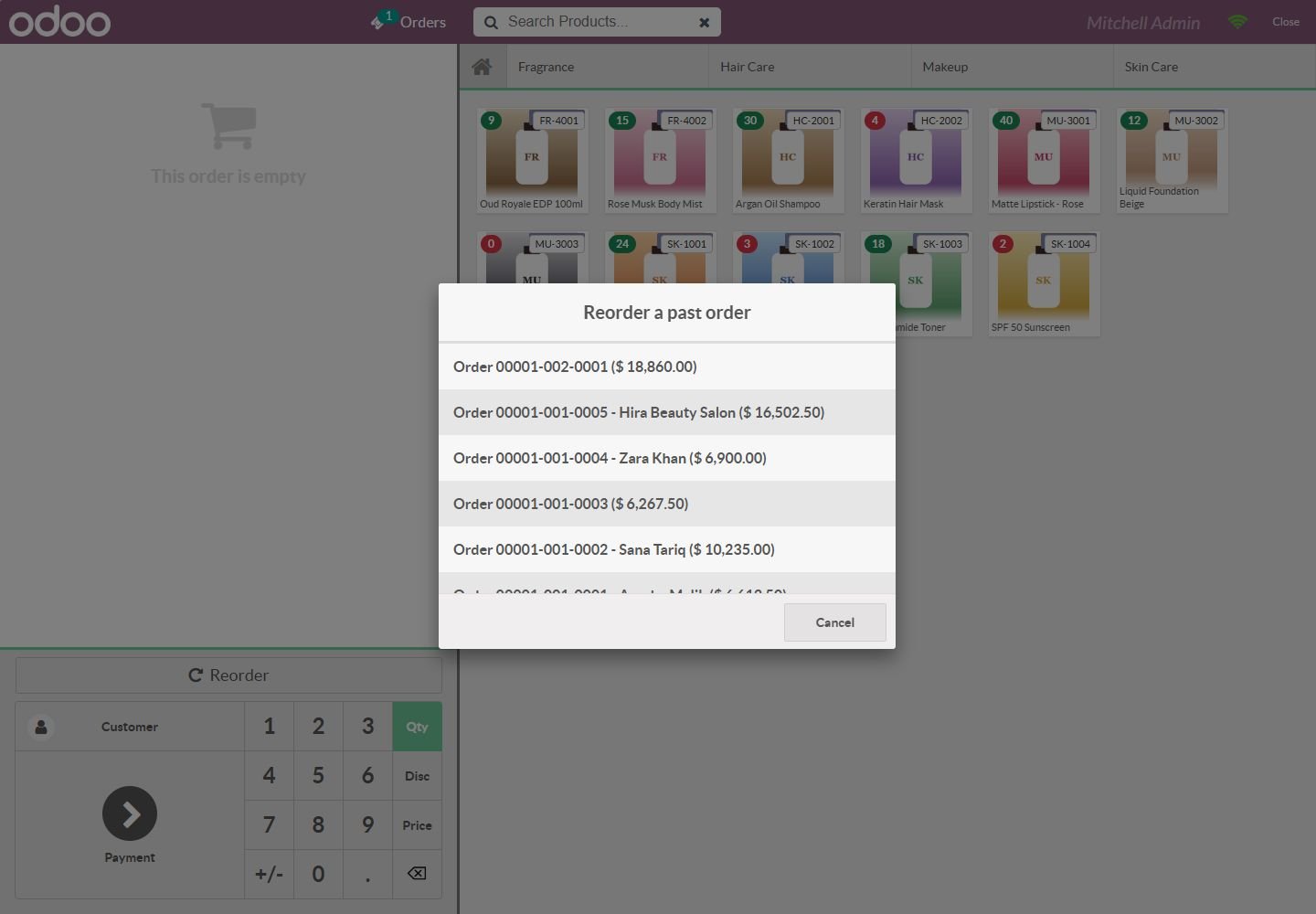
Reorder a past order

Open any paid order and press Reorder: same customer, products, quantities, prices and discounts.

Reorder a past order
Step 2

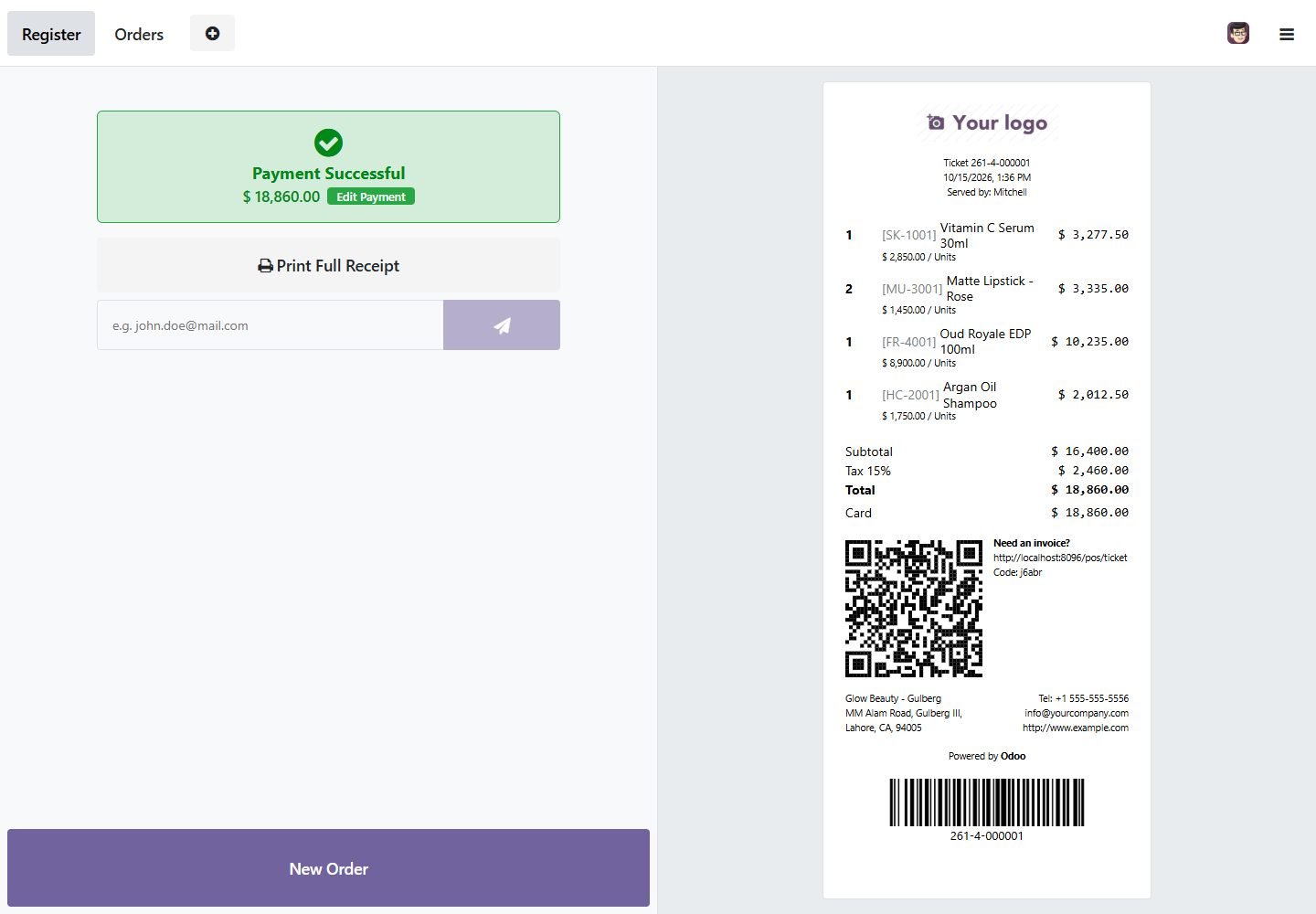
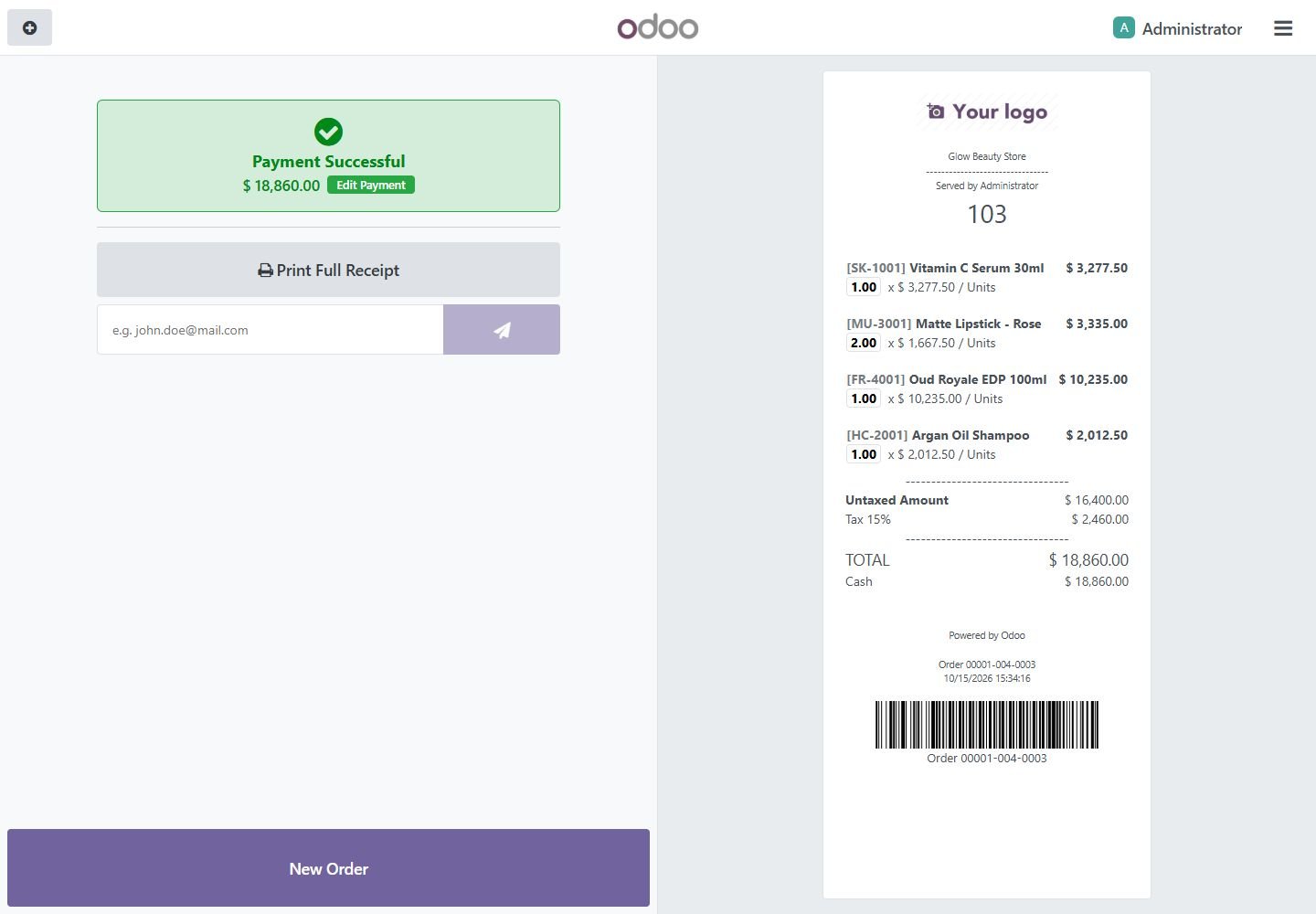
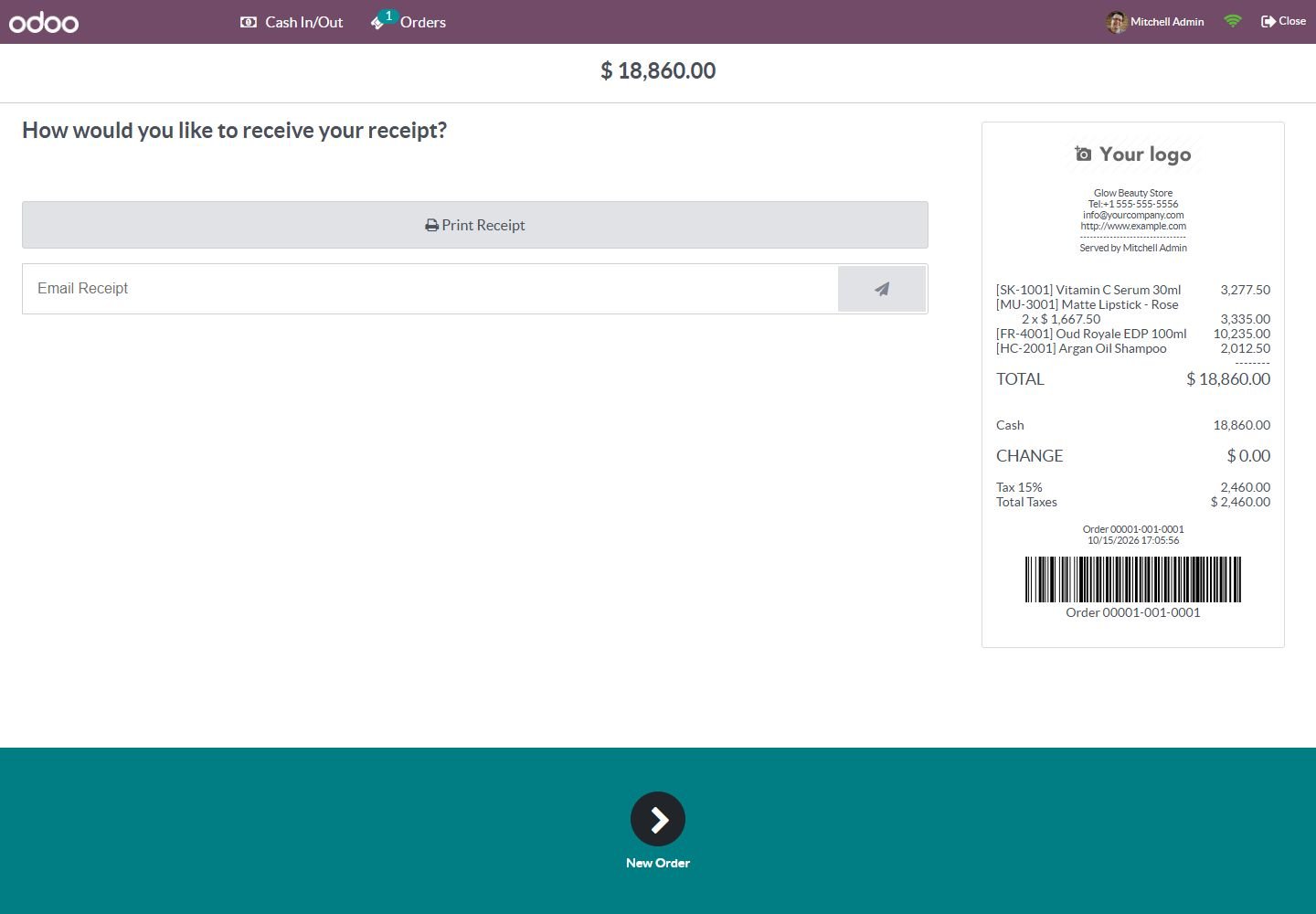
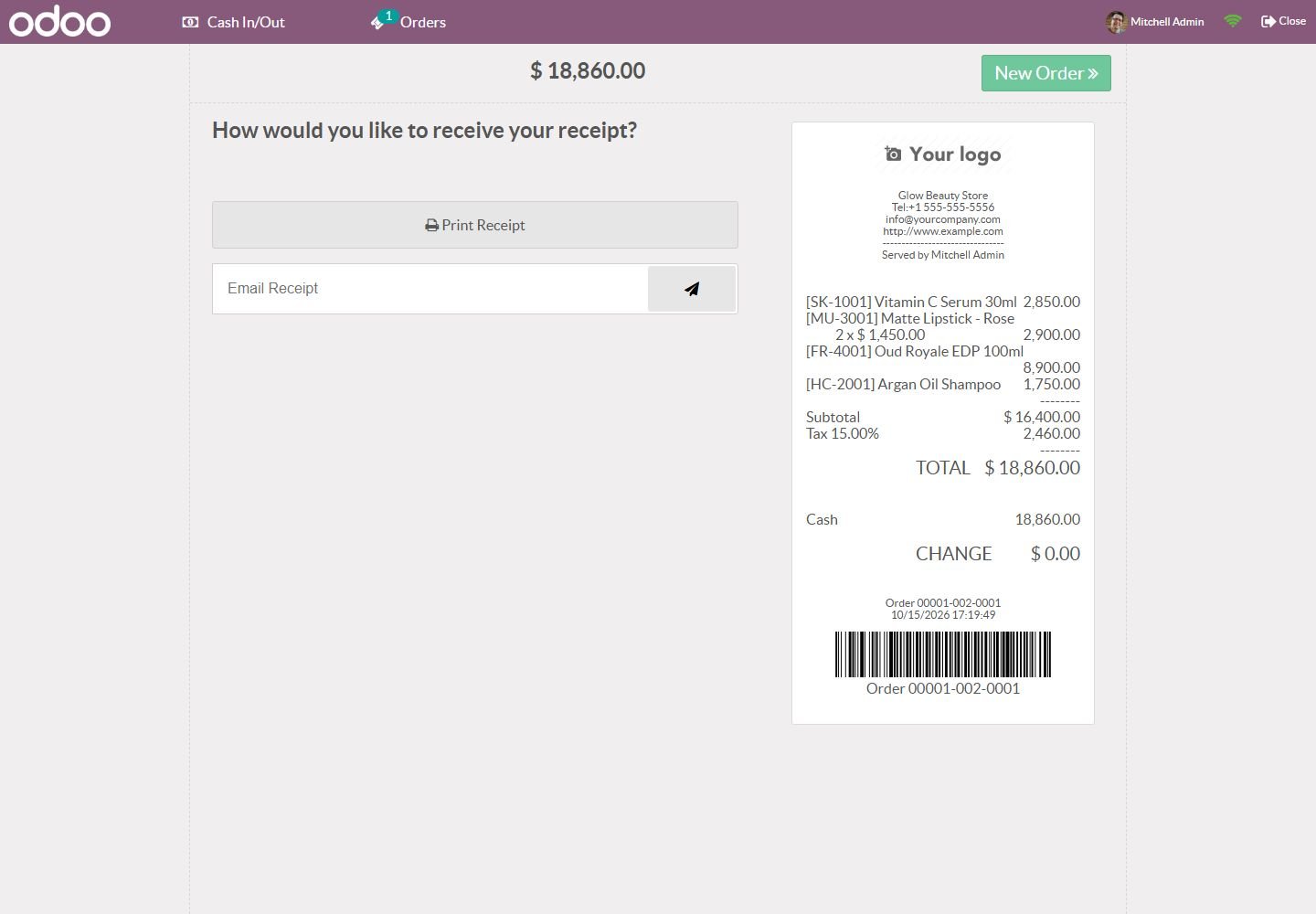
Order barcode on the receipt

The order reference is printed as a barcode for fast lookup and returns.

Order barcode on the receipt
Step 3

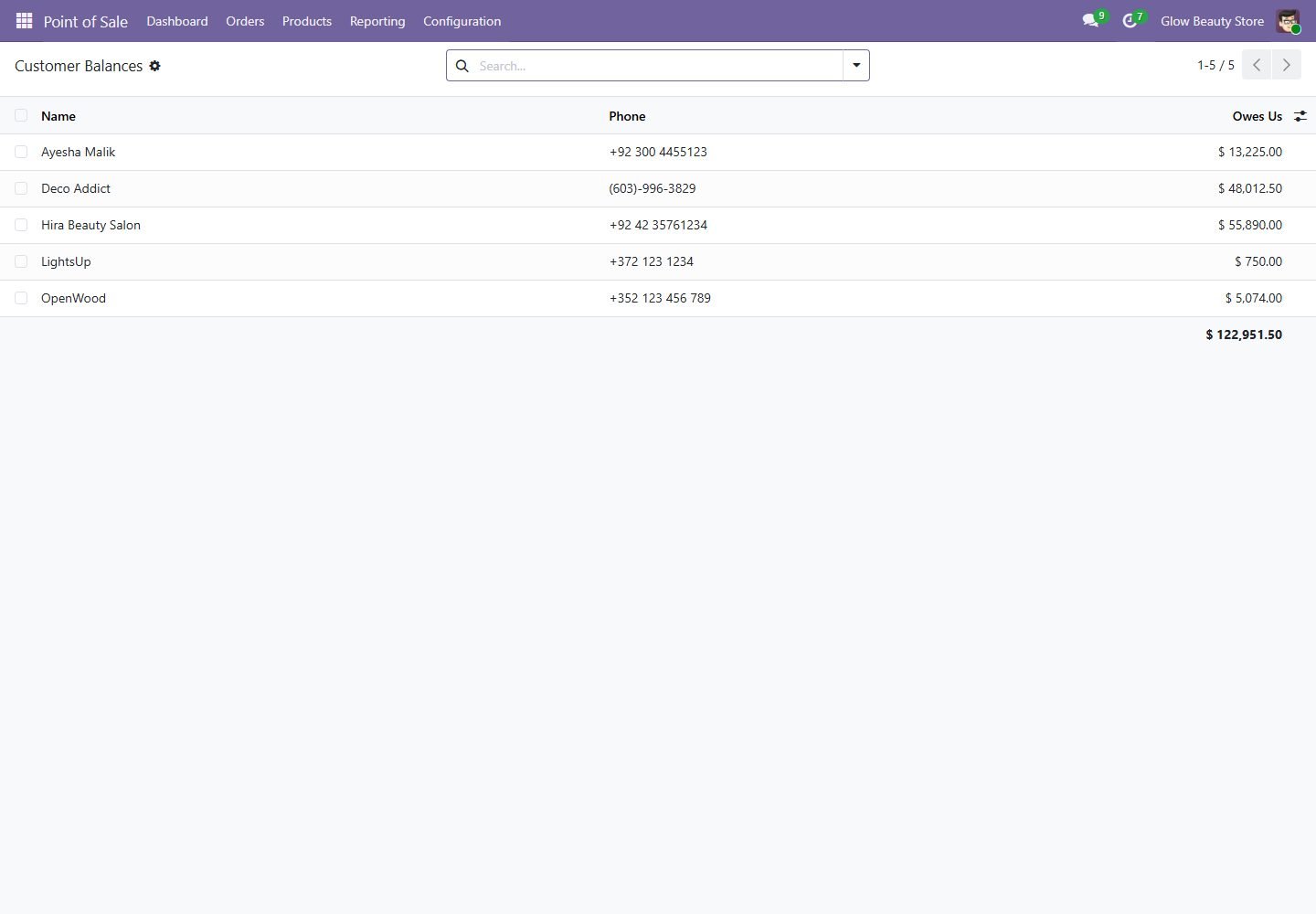
Customer balances

Point of Sale > Reporting > Customer Balances lists every customer who owes you.

Customer balances
Step 4

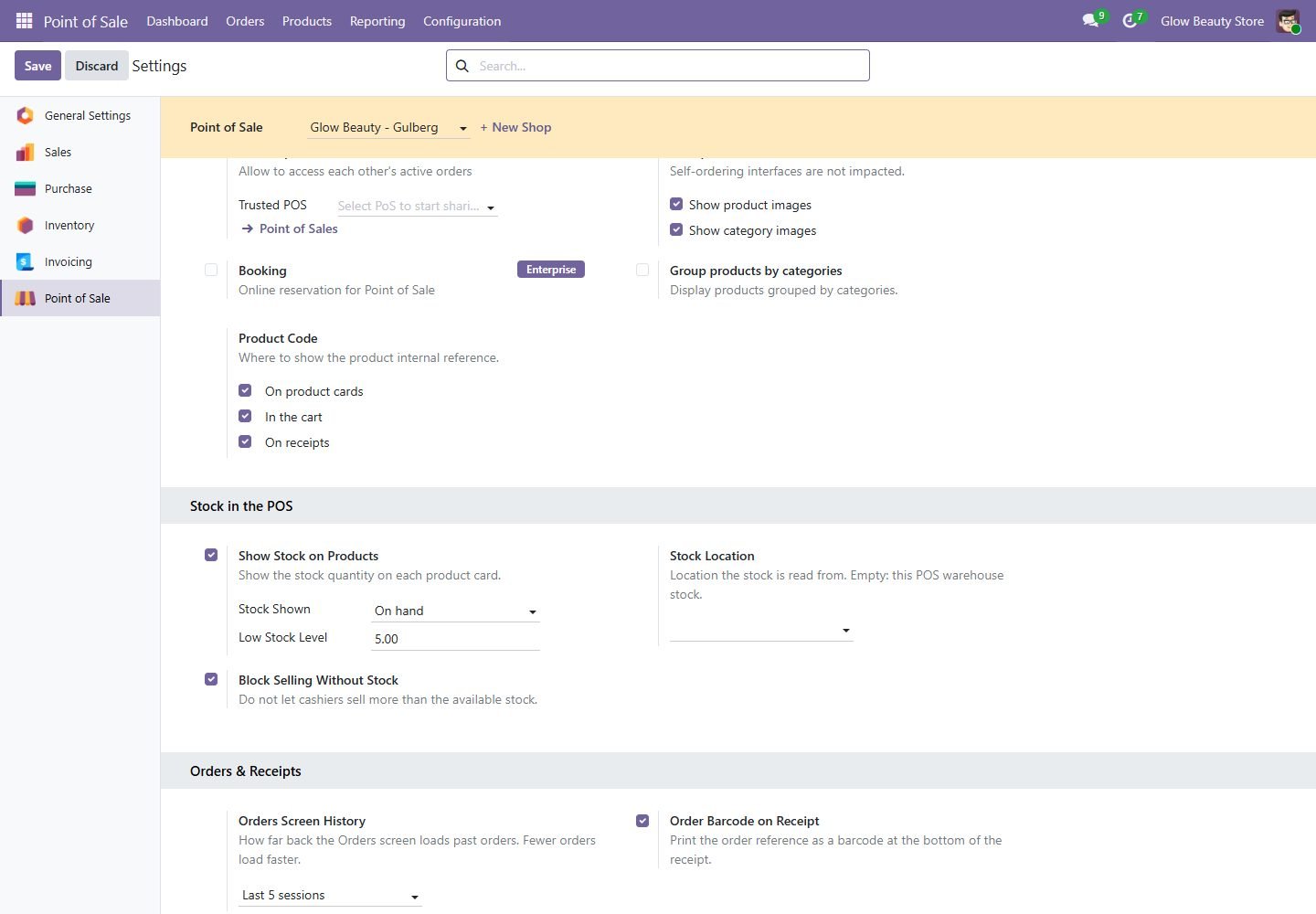
Orders & Receipts settings

Choose the history limit (all, today, current session, last 3 or 5 sessions) and the receipt barcode.

Orders & Receipts settings
Step 5

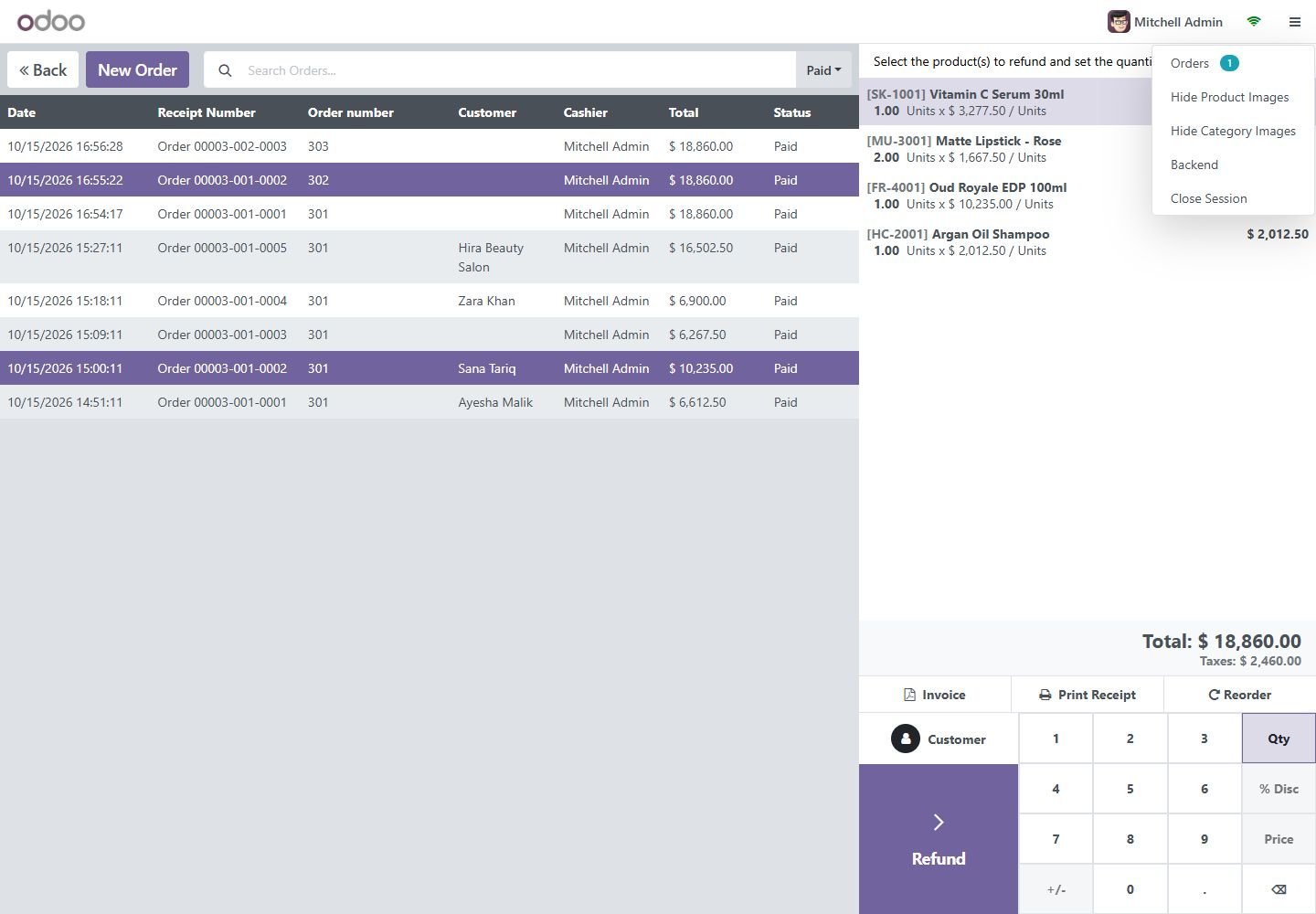
Odoo 18: reorder a past order

Copy a paid order (customer, products, prices, discounts) into a new order.

Odoo 18: reorder a past order
Step 6

Odoo 18: order barcode on the receipt

The order reference printed as a scannable barcode.

Odoo 18: order barcode on the receipt
Step 7

Odoo 17: reorder a past order

Copy a paid order (customer, products, prices, discounts) into a new order.

Odoo 17: reorder a past order
Step 8

Odoo 17: order barcode on the receipt

The order reference printed as a scannable barcode.

Odoo 17: order barcode on the receipt
Step 9

Odoo 16: reorder a past order

Copy a paid order (customer, products, prices, discounts) into a new order.

Odoo 16: reorder a past order
Step 10

Odoo 16: order barcode on the receipt

The order reference printed as a scannable barcode.

Odoo 16: order barcode on the receipt
Step 11

Odoo 15: reorder a past order

Copy a paid order (customer, products, prices, discounts) into a new order.

Odoo 15: reorder a past order
Step 12

Odoo 15: order barcode on the receipt

The order reference printed as a scannable barcode.

Odoo 15: order barcode on the receipt
Step 13

Odoo 14: reorder button

Odoo 14 has no paid-orders screen: the Reorder button lists recent paid orders within the history limit.

Odoo 14: reorder button
Step 14

Odoo 14: order barcode on the receipt

The order reference printed as a scannable barcode.

Odoo 14: order barcode on the receipt
Common questions

Questions aboutthis module.

Something else? Ask our team.

Odoo 14, 15, 16, 17, 18 and 19 (Community and Enterprise). Pick your version on this page.

Yes, you can request free deployment after purchase.

Not sure it's theright fit?

Book a free consultation and we'll help you pick the right modules for your workflow.